Guide
Make a photo booth frame in Canva or in our editor?
By La Cabine Bretonne · published
A photo booth frame made in Canva can suit a booth if the exported file has the correct dimensions and genuinely transparent photo slots. A finished photo collage serves a different purpose. This guide explains what to prepare, and when to choose a design from our catalogue that you customise directly on this website. In both cases, the aim is to let photographs taken during the event show through the decoration.
A print overlay or a finished photo collage?
For a collage, you add photographs you already have and download a finished image. For an event booth frame, the pictures do not exist yet: the booth software captures them during each session and places them inside the design. These two kinds of image therefore have different jobs, even if their previews look similar.
Your operator will usually need a PNG decoration with transparent photo slots, together with the canvas dimensions and window positions. Ask what they expect before starting. Our photo booth PNG overlay page explains how the layers fit together and what the position file supplied by this website contains. The operator can then decide how to set up the print in their own software.
Set the print dimensions before designing
Start with the output size supported by the booth. A portrait 4×6 print from our catalogue uses 1200 × 1800 pixels at 300 DPI; a landscape 6×4 uses 1800 × 1200 pixels. A 2×6 strip uses 600 × 1800 pixels. The French commercial name 5×15 is rounded: a 2×6-inch strip measures exactly 5.08 × 15.24 cm.
Portrait and landscape are different compositions. Rotating a completed portrait also rotates its wording and photos, rather than creating a landscape layout. Compare the previews for White Signature, then use our print size guide to check dimensions. If the operator requests bleed, confirm the extra area before preparing the artwork rather than adding it after placing every photo window.
In Canva, check the transparency of each window
A white rectangle drawn in a document remains white in an exported image. It does not automatically become an opening through which booth software can display a photograph. A checkerboard added as artwork is also just a pattern; it does not create a transparent area in the file.
Canva documents a PNG export option with a transparent background, subject to the account’s plan. Check its current help page, linked below. That setting affects the document background; it does not remove an opaque shape you have drawn over a photo window. Check both the export setting and the individual elements in your design.
Open the downloaded PNG over a coloured background and examine the slots. If the rectangles stay white, correct the source document. Avoid JPEG for this job because it cannot preserve an alpha channel. Our overlay troubleshooting guide helps distinguish missing transparency from an incorrect layer order in the booth software.
In our editor, start with a prepared frame
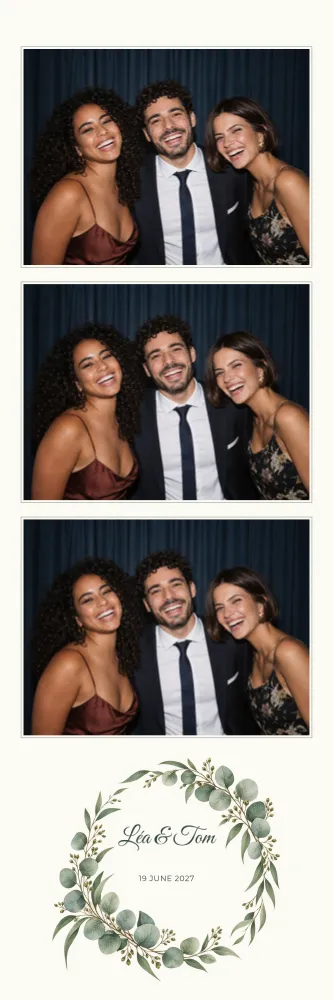
On Photobooth Template, the photo slots are already part of each design. Open Wild Eucalyptus, for example, and choose a print size and photo count available on its product page. The preview can show sample photographs to help you judge the composition; the production overlay keeps the windows empty and transparent.
You can replace wording, change colours and adjust the position or size of the existing areas. Your changes belong to your version of the design. For a narrow keepsake to paste into a guest book, the wedding photo strip collection brings together suitable designs in one place.
This route produces a finished PNG, a JSON file with photo positions and a dslrBooth package. It does not provide an editable Canva project or a Canva template link. Choose the route according to the file your operator expects and the kind of design changes you need to make before the event.
Names, date and wording: keep the print readable
Enter the final spelling of the names, followed by the date and perhaps the venue. A long sentence quickly uses space needed for a photo on a narrow strip. Keep the message short, check punctuation and make sure the wording stands out against its background. Our wedding frame wording examples help you prepare those lines before opening the editor.
For a restrained design, White Signature reserves a margin for the event details. For foliage and natural decoration, browse the rustic wedding collection. Inspect the result at something close to its printed size. Wording that looks comfortable on a large screen can be difficult to read on the actual strip, especially in a delicate script.
Send the operator the correct files
Send the original downloaded file at its full resolution. A screenshot or an image compressed by a messaging app can lose detail. Specify the print size, orientation, number of photo windows and intended capture order. If you made a PNG elsewhere, the operator also needs to know where each photograph should sit underneath it.
With our download, the JSON supplies those positions in pixels. The dslrBooth package sets up the overlay and photo areas together. A different app accepting PNG images does not establish that it can import this native package. Ask your operator to check their workflow and make a test print to examine faces, margins and trimming before the event.
Choose your next step
Already have a Canva document? Check its pixel dimensions and transparent slots with the operator first. Want a prepared design instead? Open the Wild Eucalyptus editor, replace the example details and inspect the preview. Our customisation guide explains the controls and the checks to complete before confirming your version.
Before ordering, read what is currently free on the website, which follows the actual offer. The FAQ covers other questions about files and downloads. You can then choose a route with a clear understanding of what you will receive and what your booth operator still needs to prepare.