
Guide
White, blurry or misaligned photo booth overlay: what to check
By La Cabine Bretonne · published
A frame that looks white in an image viewer is not necessarily faulty: the viewer may simply display transparency against white. A slot that actually hides your guests, a shifted photograph or blurry names needs a closer check of the file and print settings. Work through the original download, pixel dimensions, transparency, layer order and a complete test print, in that order.
1. Make sure you have the production file
The website shows several images of a design: a catalogue thumbnail, a customisation preview and the final overlay. They serve different purposes. A thumbnail may include example photographs and has a resolution intended for the web. A screenshot also captures the examples and interface. Neither replaces the production PNG downloaded after ordering.
Return to your order’s download page and download the HD overlay or dslrBooth package. If you downloaded the complete bundle, extract the outer archive first and identify the file intended for the booth software. Our dslrBooth installation guide explains the distinction between those archives. Keep an untouched copy of the original before experimenting with imports, scaling or print settings in your software.
2. White slots: transparent windows or solid artwork?
Place the PNG over a coloured background in a tool that displays transparency. If the colour appears through the photo windows while the decoration stays visible around them, the openings are present. A viewer using a white canvas can give a misleading impression. The checkerboard shown by some tools is a display aid rather than part of the artwork to print.
If the slots remain opaque, check the selected file and its format. JPEG cannot preserve transparency. Changing a JPEG filename to end in PNG does not recreate transparent openings. For artwork made elsewhere, correct the source document; our Canva photo booth frame guide explains the checks to make before export. Confirm the downloaded result rather than relying only on the editor preview.
3. Photos cover the decoration: check layer order
The intended order is straightforward: photographs behind, decorative overlay in front. A transparent opening reveals the photograph, while an opaque ornament covers it. If a photo hides a border, name or decorative star, inspect the layer order in the booth software before moving areas around in the original design.
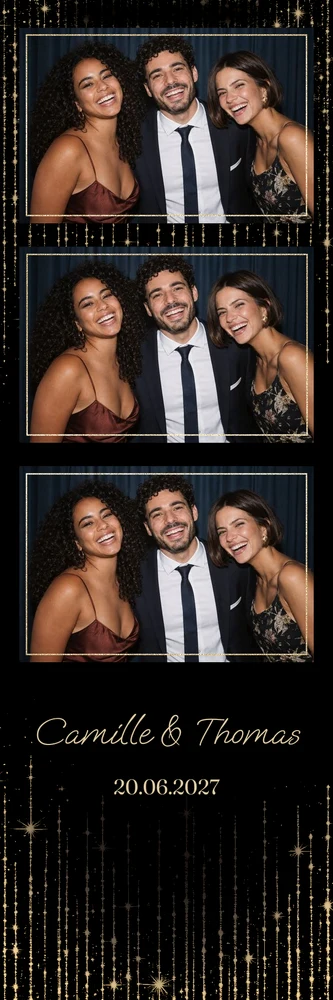
For Golden Sparkles, the dark background and stars stay above the pictures. Our dslrBooth package already prepares that arrangement. If you import only the PNG into another program, you must position the photographs and frame yourself. The photo position JSON describes the rectangles to fill; it does not rearrange the layers inside the other program.
A rectangular photograph can sit behind a circular opening: the overlay’s transparency provides the visible edge. You do not need to cut every photograph into a circle if its rectangular area is positioned correctly beneath the window.
4. Shifted photos: compare pixel dimensions
The PNG and the booth software document must have matching dimensions. Check 1200 × 1800 pixels for a portrait 4×6 card, or 1800 × 1200 for landscape. A single 2×6 strip is 600 × 1800 pixels. Positions from one file do not apply unchanged to an enlarged, cropped or rotated version of that image.
The JSON measures from the top-left corner and gives each slot’s position and dimensions in pixels of the supplied PNG. If the HD overlay includes bleed, those positions already account for it. Do not add the offset again. The dslrBooth version uses the finished size: keep its package together instead of mixing its XML with a different PNG.
Use our print size guide for exact inch and centimetre equivalents. A rounded commercial size name should not be used to recalculate approximately an image that was already prepared at the required print resolution.
5. Blurry or clipped wording: check resolution and margins
Inspect the original file before blaming the printer. An image saved from a preview, an enlarged screenshot or a copy compressed by a messaging app may lack pixels. Entering 300 DPI in a setting cannot restore lost detail. Use the supplied HD overlay at its original dimensions and avoid repeated resizing while transferring it between tools.
If the letters are sharp but clipped near an edge, move important wording away from the trim area. For Taupe Monogram, examine the initials and date at actual print size. Our customisation guide explains how to move the provided areas and inspect warnings before confirming. For a composition with more open space, compare designs in the minimalist wedding collection before settling on your frame.

6. Two identical strips: understand the print sheet
Two matching strips on a sheet are not a layout error. Our dslrBooth package places two 2×6 strips side by side on a portrait 4×6 sheet. Both copies use the same captures. After cutting, one can go into the guest book and the other can leave with the guests, without requiring another photo session.
The number of copies and the number of photographs on each strip are different settings. Three windows repeated across two strips do not automatically mean six separate captures. Test a complete session, then inspect the printer’s cut or the manual trim. Browse the wedding photo strip collection to compare compositions before choosing the design and photo count for your event.
7. Run a complete test before the event
Test with real faces, a group and the final wording. Print at actual size without automatic fit-to-page scaling, then inspect orientation, crop, readability and trimming. Our photo booth printing guide explains these checks. A correct screen preview cannot by itself confirm the margins applied by your printer and its driver during a real print.
For a new version before ordering, open the Taupe Monogram editor and check your adjustments. For an existing order, follow the correction route described in the FAQ. Send the operator the print format, the symptom you observed and the original file involved. Those details let them check the relevant setting without guessing from a compressed screenshot or changing an unrelated part of the design.