
Guide
How to customise a photo booth template, step by step
By La Cabine Bretonne · published · updated
Customising a photo booth template takes no account and no software to install: it all happens in your browser, with a preview that updates as you go. This guide follows the whole journey in order, from picking a design to getting print-ready files for your booth, and on to last-minute fixes from My account.
Step 1: pick the design, size and layout
Everything starts on the design page. Before you touch the wording, set three things, because they decide how much room there is for everything else:
- Format: 4×6 portrait or landscape, 2×6 strip and, on some designs, a square or a horizontal strip. Go with whatever your booth prints.
- Photos per print: how many photo slots each print has.
- Layout: where a design offers more than one, how the photos and text are arranged.
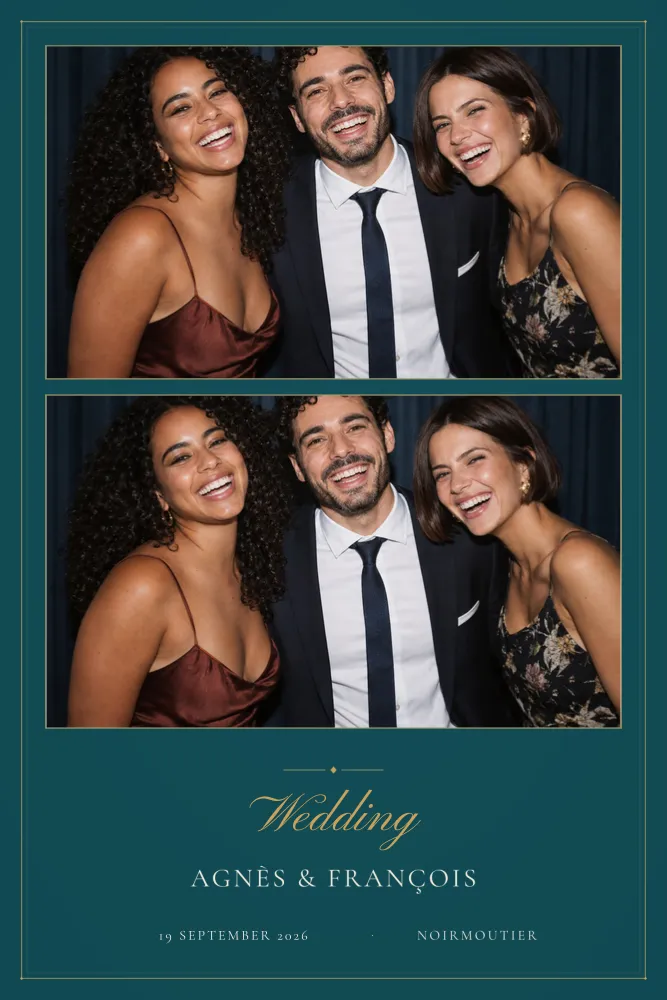
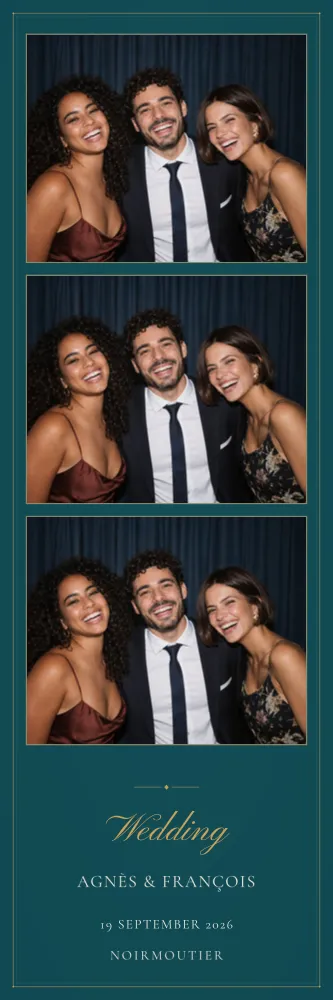
Take Deep Teal & Gold: deep teal, a double gold rule, names in spaced capitals, with the date and venue beneath the photos. Or White Signature, which gathers names, date and venue in a clean white margin under large photos. Both belong to the minimalist wedding collection. Still torn on size? Our guide to photo booth print sizes will help you decide.
Step 2: open the editor
The Customise this template button opens the editor with your choices already applied. A three-step trail, Choose, Customise, Download, shows where you are, and you can still change the size, number of photos and layout at any point.
The preview sits on one side, your fields and settings on the other. Photo slots show an example photo so you can judge the composition. Switch off Example photo to see the slots as they will appear in the file: empty, waiting for the pictures your booth takes on the day.
To follow along, open the Deep Teal & Gold editor in another tab.
Step 3: write your text
The fields depend on the design: names, date, venue, a message, a hashtag and so on. Whatever you type appears on the preview straight away, in the design’s own lettering. A few tips for a frame that reads well:
- Keep it short: names, a date and a place are often enough. Long sentences are hard to read on a print a few centimetres wide.
- Read dates and the spelling of names out loud: it is the most common slip, and the most noticeable.
- A field you do not need can sometimes be left blank; the site tells you which ones must be filled in.
For inspiration, browse our ideas for wedding photo booth frame wording and wedding hashtags.
Step 4: change the colours
The Background and text colours panel lets you match the frame to your theme. The background changes along with its shading, while motifs in another colour stay as they are. Each colour in the design can be changed in one go, everywhere it appears, or text by text if you want, say, the names to stand apart from the date.
Watch the contrast: if a piece of text is likely to be hard to read on your chosen background, the site flags it and suggests a stronger colour. These changes only affect your copy; the catalogue design itself never changes.
Step 5: move and resize zones
The Adjust the layout panel is where you fine-tune the composition. It works on text zones and photo zones alike:
- Select an element, from the list or straight on the preview.
- Drag it, or nudge it with the arrow keys: 1 pixel at a time, or 10 pixels while holding Shift.
- Pull a corner to make it bigger or smaller.
Any element you have moved can be put back in one click, and Restore the original layout undoes every adjustment at once. Undo and Redo step through your latest changes. Avoid pushing text right up to the edge: the cut at print time can drift by a few millimetres.
Step 6: read the checks before you confirm
At the bottom of the editor, a bar sums up what is left to do. Items to edit must be sorted before you can carry on:
- a required field left empty;
- text too long for its zone, which needs shortening.
Items that need checking are suggestions you can either fix or confirm:
- placeholder text you forgot to replace;
- text very close to the edge, which may be trimmed at print time;
- a text colour that will be hard to read on the background.
Click any message to jump to the field in question. Once everything is in order, the bar reads Everything is ready.
Your draft stays on your device
No need to finish in one sitting: your text and settings are saved automatically a moment after each change, and the Save button does it instantly. A short note confirms that your work is saved on this device.
The draft is kept in your browser, on your device, so to pick it up again, come back to the same design from the same browser. If your browser blocks saving, a message asks you to allow storage so your text is kept.
Step 7: order and download your files
Depending on the design, the final button lets you download or order. You enter your email address so we can send you the link to your files: there is no account to create and no password to remember. For an order, a summary appears before checkout.
Your files are ready straight away on the confirmation page, through the link in your email and in My account. Download everything (.zip) bundles the high-resolution PNG overlay at 300 DPI, transparent where the photos go, the JSON file of photo positions, the dslrBooth file and a README.txt. Each file can also be downloaded on its own.
Next, our guide on how to install a dslrBooth template covers the import, and the PNG overlay page explains how to use your frame with any software that accepts a PNG overlay.
After downloading: edit and share from My account
Spotted a typo the night before, or the venue has changed? Sign in to My account with the email address used for your order: you receive a sign-in link, with no password. From there you can edit your text and layout as many times as you need, and your files are updated.
My account also lets you share a link to your files with your photo booth supplier, so there is no attachment to forward. The design is meant for your own event: it cannot be resold or redistributed as it is. Any other questions? Our frequently asked questions probably have the answer.