
Guide
How to import a template into dslrBooth
By La Cabine Bretonne · published · updated
Your design is customised and your order is placed: all that is left is to get it into dslrBooth so the photo booth can use it on the day. The good news is that the site prepares a ready-to-import dslrBooth template with the photo slots already positioned. Here is which file to pick, what is inside it and how to check everything prints as planned before your event.
Which files do you get after ordering?
It all starts in the editor, for instance by opening the Golden Sparkles editor, where you set your wording, colours and layout. Once your order is placed, each design can be downloaded in several forms:
- the HD overlay, a 300 DPI PNG at the exact print size, transparent where the photos go (marked ‘including bleed’ when the design has one);
- the photo slot file, a JSON that gives the position of each photo in pixels;
- the dslrBooth file, an archive whose name ends in ‘-dslrbooth.zip’;
- the ‘Download everything (.zip)’ button, which bundles those three files with a README.txt in a single archive.
The files are available straight after ordering on the confirmation page, then through the link sent by email and in My account, where you sign in with a link sent to your inbox, with no password.
Which file should you import into dslrBooth?
The only file to import is the ‘…-dslrbooth.zip’ archive, exactly as it is: do not unzip it. dslrBooth reads this archive directly and finds both the design and the photo positions inside.
If you used ‘Download everything’, there is one extra step: extract that main archive on your computer first, then look in the resulting folder for the ‘…-dslrbooth.zip’ file. That one, still zipped, is what you import.
In dslrBooth, use its template import feature and select the archive. Menu names can differ from one version to the next, so if in doubt, the dslrBooth documentation explains the steps for yours. The design then appears in the list of available templates, with its thumbnail.
The PNG overlay on its own is not meant for dslrBooth: you would have to place every photo by hand. It is there for any software that accepts a PNG overlay, together with the positions in the JSON, as explained on the PNG photo booth overlay page.
What is inside the dslrBooth archive?
The archive holds three files, prepared at download time from your customised version:
- the design PNG, with your background and wording, transparent at the photo slots;
- preview.png, a preview on a white background used as the thumbnail in dslrBooth’s template list;
- template.xml, which describes the layout: resolution 300, the PNG placed in front and locked, and photos numbered ‘Photo 1’, ‘Photo 2’ and so on.
This template is set at the trimmed size, without any bleed: if your HD overlay has one, the extra margin has already been removed in the dslrBooth version. Your wording does not appear as editable fields in dslrBooth; it is drawn into the PNG, just as it looks on the site.
For a broader introduction to this file, see the dslrBooth template page.
How do the photos sit beneath the overlay?
The photo areas in your design are empty slots: the pictures taken by the photo booth on the day fill them. In template.xml, each slot becomes a numbered photo placed beneath the PNG, at the position and size you set in the editor.
During the session, dslrBooth drops the first shot into ‘Photo 1’, the second into ‘Photo 2’ and so on, then lays the overlay on top. Because the PNG is transparent at the slots, the photos show through while the decoration and wording stay in front.
Take Golden Sparkles, with its gold glitter and stars on a black background: only the openings left in the overlay reveal the photos, and the black surround frames your guests. With Bohemian Arch, the arch of pink and beige dried flowers sits over the pictures in exactly the same way.
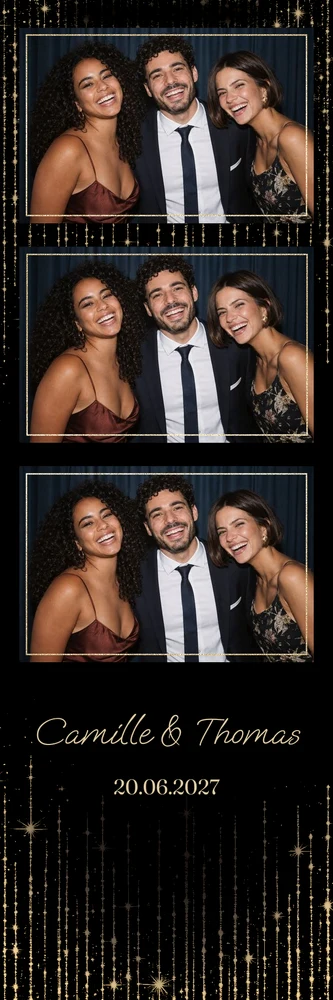
Photo strips: two strips on one 4×6 sheet
A photo strip template is never printed on its own: the dslrBooth archive places it twice on a 4×6 sheet, and both strips repeat the same photos. You then cut the sheet to get two identical strips, one for the guests to keep and one for your guest book.
- The 2×6 photo strip is placed twice side by side on a 4×6 portrait sheet, 1200 × 1800 pixels.
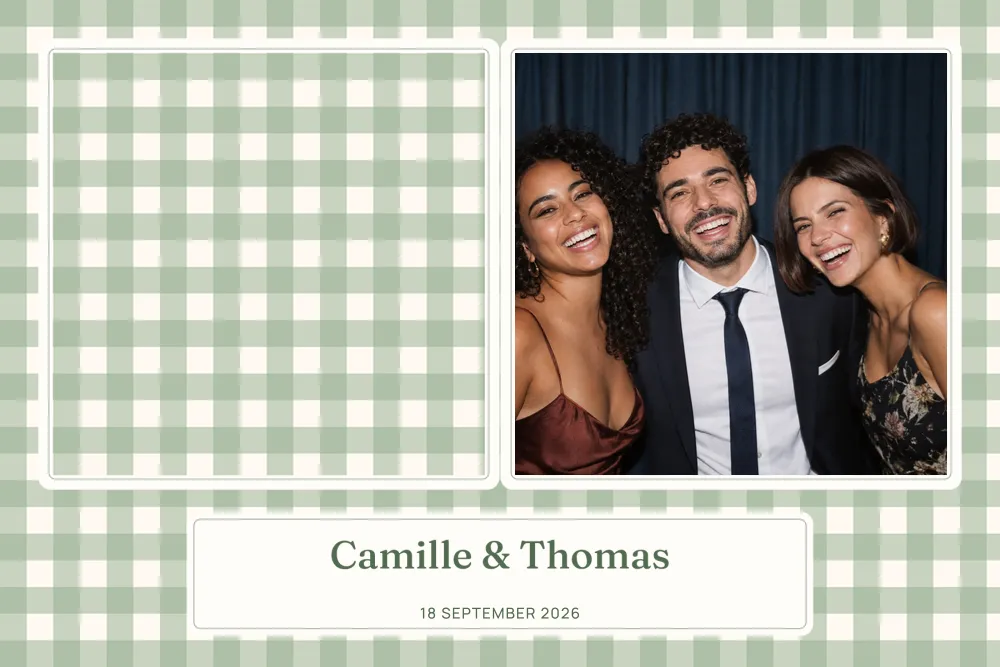
- The 6×2 landscape strip is placed twice, one above the other, on a 6×4 landscape sheet, 1800 × 1200 pixels.
Strips are a lovely choice for christenings: the christening photo strip collection gathers several, such as Sage Gingham, with its sage gingham and ivory panel for the names.
Check the orientation and the printer
For 4×6 prints, portrait and landscape are two separate layouts, not a simple rotation. Make sure the version you import matches the orientation set on the photo booth, and that the printer selected in dslrBooth uses the paper size of the design.
The file is already at 300 DPI and at the real print size, so it must print at 100%, with no scaling and no fit-to-page. Any setting that enlarges or shrinks the image shifts the photos away from the overlay. Our photo booth printing guide covers these points in depth, and choosing a photo booth print size helps you decide between the formats.
Run a test print before the big day
Nothing beats a real test session with the photo booth, the copy of dslrBooth and the printer you will use on the day. Take a few shots and look closely at the print:
- do the photos fill their slots, with no white edge or offset?
- is the wording legible, correctly spelt and a few millimetres away from the edges?
- is the orientation right, and are you happy with the colours on paper?
- for a strip, are both halves identical and easy to separate?
If something is wrong: correct, then import again
A typo in a name, a date to change, a slot to move: open My account and correct your wording or layout as many times as you need. Your files are updated; download the new dslrBooth archive, import it as it is, then run another test print.
If a photo booth provider runs the booth for you, My account lets you share a link to your files, so they always fetch the latest version themselves. For anything else about files and corrections, see the frequently asked questions, or read our guide to customising a photo booth template.