
Guide
Photo booth printing: getting your prints right
By La Cabine Bretonne · published · updated
A design that looks great on screen does not always make a great print. Between the file and the paper sit the printer, the media and a handful of settings that can throw everything off. The good news: with a file at the right size and a few simple checks, photo booth printing becomes predictable. Here is what to check, from DPI to trimming your photo strips.
300 DPI and exact dimensions: what your file contains
The overlay you download is rendered at 300 DPI, straight at the print size: there is nothing to enlarge or crop. Depending on the format, the file measures:
- 4×6 portrait (10×15 cm): 1200 × 1800 pixels;
- 6×4 landscape: 1800 × 1200 pixels;
- 2×6 photo strip (5×15 cm): 600 × 1800 pixels;
- 5×5 square (13×13 cm): 1500 × 1500 pixels;
- 6×2 landscape strip (15×5 cm): 1800 × 600 pixels.
When a design says ‘including bleed’, the PNG is slightly larger than the trimmed size: the extra margin is meant to be cut off. The JSON that comes with the overlay lists the print dimensions, DPI, bleed and safe margin in pixels. To compare sizes, see the formats page or our guide to choosing a photo booth print size.
Print at 100%, with no scaling
This is the setting behind many unpleasant surprises. In the print dialogue, choose actual size, at 100%, and switch off any option such as ‘fit to page’, ‘fill’ or ‘scale to paper’. These options resize the image: wording creeps towards the edges and the photos no longer land exactly in their slots.
Be wary of borderless printing on some printers too: to avoid a white edge, it often enlarges the image slightly, which amounts to hidden scaling. Only a test print shows what your equipment really does.
With dslrBooth, the ready-to-import archive is already at sheet size: our guide to installing a dslrBooth template explains how to load it and what to check.
Portrait or landscape: check the orientation
For 4×6 prints, portrait and landscape are two separate layouts, each with its own slots and wording. Pick the one that matches your booth’s setting: a portrait file sent to a sheet set to landscape will be rotated or shrunk, and the result will no longer match what you saw on screen.
Check the orientation in three places: the design you ordered, the photo booth software and the printer driver. If they do not all agree, that is where the problem lies.
Margins, safe area and bleed
No cut is ever perfectly centred: from one print to the next, the edge can drift slightly. Hence a simple rule: keep important wording, such as names, date or hashtag, a few millimetres away from the edges. In the editor you can move and resize each text area to bring it in from the edge if needed.
Bleed tackles the same issue from the other side of the cut: the background runs past the trimmed size, so a slightly off-centre cut never leaves a white line. When it is included, keep it when printing and let the trim remove it. The dslrBooth archive, on the other hand, is already at the trimmed size, without bleed.
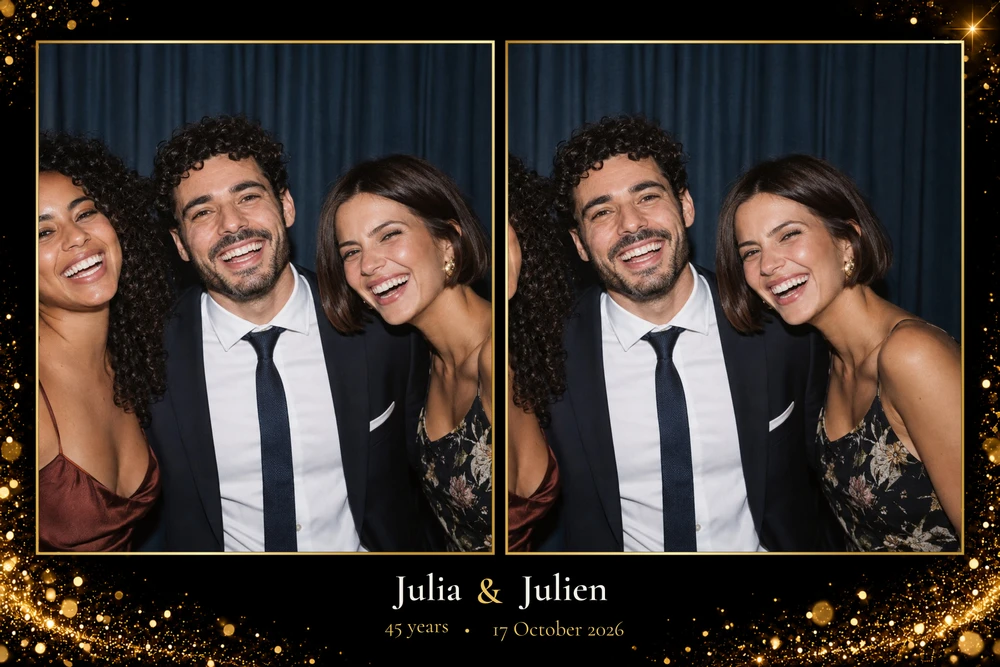
A very pared-back design such as Pure Simplicity, all white with a single line of text, is forgiving; a dark design with fine frames, such as Golden Night with its glitter on deep black, makes any white edge far more noticeable, which is all the more reason to test.
Glossy or matt paper?
Glossy photo paper gives vivid colours and deep blacks, but it reflects light and shows fingerprints. Matt paper has a softer, non-reflective finish that suits pastel tones and light backgrounds. Neither is better in absolute terms: it depends on the style of the design and the look you are after.
On a photo booth printer, paper and consumables usually come as a matched set made for the machine, so stick to the ones the manufacturer specifies. At home, choose photo paper in the right size and select its exact type in the print settings.
Dye-sublimation or inkjet: two ways to print
Photo booths generally use dye-sublimation printers: colour is transferred by heat, and each print comes out dry and protected, ready to hand out. They work with fixed sizes, which is why choosing a design in the right format matters.
A home inkjet printer can also do the job for an event at home. It needs more care: the right paper type in the driver, photo quality, drying time before handling the prints, and caution with borderless mode. Our DIY photo booth guide covers that kind of set-up.
Colours on screen versus on paper
A screen emits light while paper reflects it, so colours can never match exactly. Very dark backgrounds tend to lose detail, pastel tones can look paler, and every printer has its own character.
The only reliable way to judge is to test. If a background looks too dark or some wording too faint on the print, you can change the background colour, any of the design’s colours or the colour of a single piece of text. A design built on soft gradients such as Soft Pastels deserves this check: open its editor and adjust the shades if needed. Designs from the black and gold collection are also worth checking on paper.

Your test print checklist
Run it with the printer, paper and software you will use on the day, a few days before the event:
- print at 100%, then measure the print: it should match the stated size;
- check that the photos fill their slots with no white edge;
- read through the wording and make sure nothing sits too close to an edge;
- look at the colours in daylight, then under the venue lighting if you can;
- if anything is off, correct it from My account, download the updated files and print again.
Photo strips: print, then trim
A photo strip prints two to a 4×6 sheet: the 2×6 photo strip side by side on a portrait sheet, the 6×2 landscape strip one above the other on a landscape sheet. Both strips repeat the same photos.
Some photo booth printers can cut the sheet in two; otherwise a guillotine trimmer, or a ruler and craft knife, will do. Cut straight down the middle, after drying for an inkjet print. More questions about files or printing? The frequently asked questions have the answers.